How to Manage Fixed Assets
This guide explains how to perform specific tasks related to fixed assets in Kezi , such as configuration, manual entry, and tracking.
[!TIP] New to assets? If you want a step-by-step walkthrough of your first purchase, follow our Acquiring Your First Assets Tutorial. Want to understand the theory? Read our Explanation of Asset Management.
1. Configure Asset Categories (Setup)
Asset categories act as templates that automate the accounting for similar items (e.g., "Vehicles" or "Office Electronics").
- Navigate to Accounting → Assets → Asset Categories.
- Click Create Category.
- Fill in the Accounting Accounts:
- Asset Account: Where the value is tracked on the Balance Sheet.
- Accumulated Depreciation: The contra-account for tracked wear and tear.
- Depreciation Expense: The P&L account for periodic costs.
- Set the Useful Life (years) and Depreciation Method (usually Straight Line).
- Save the category.
2. Record a New Asset
There are two ways to record an asset acquisition:
A. Recommended: Via Vendor Bill
This method is best for new purchases as it links the asset to the original invoice.
- Create a Vendor Bill.
- On the line item, click the gear icon and select the Asset Category under the "Shipping & Assets" section.
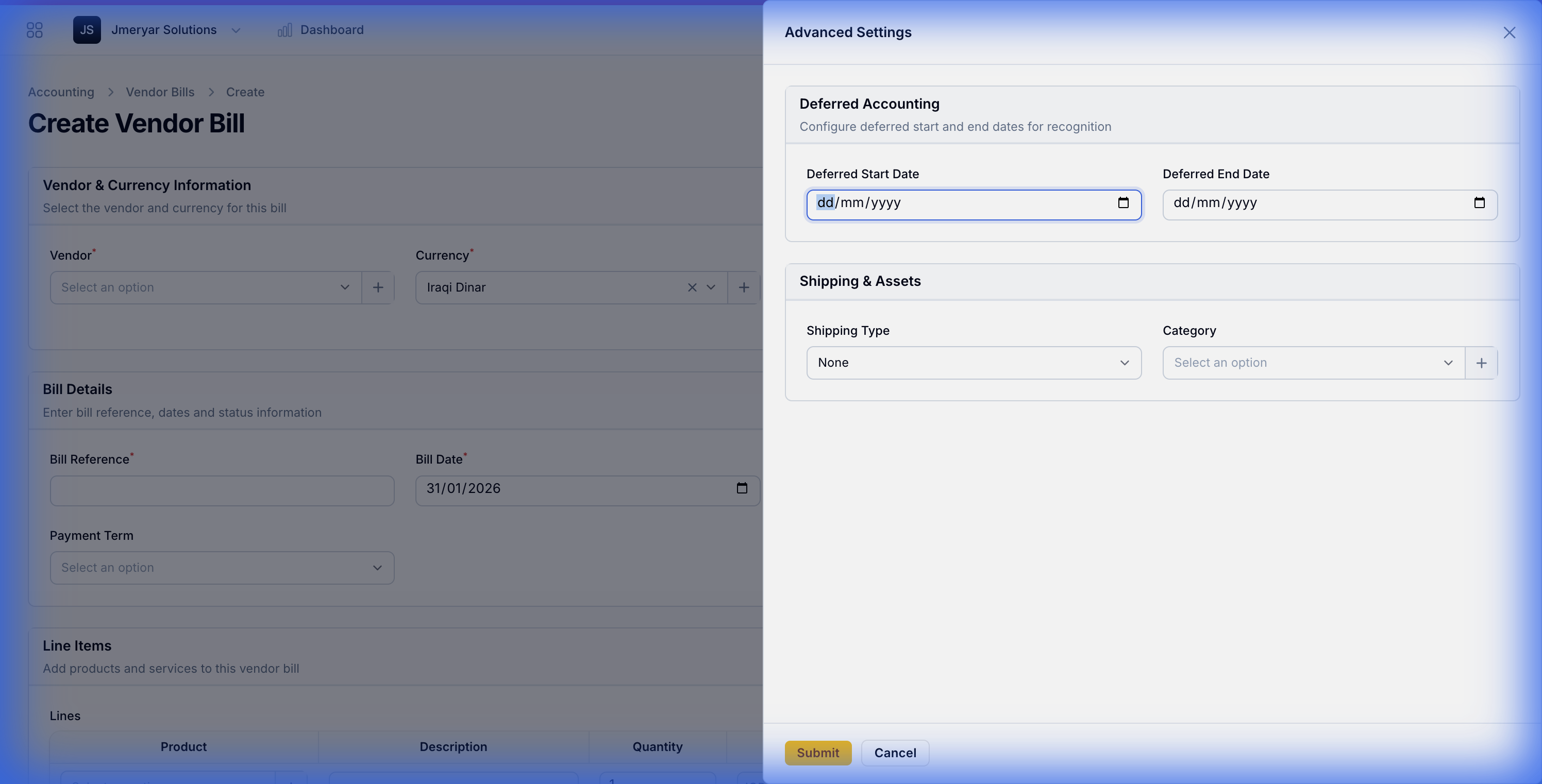
- Post the bill. The system will automatically create a draft asset.
B. Manual Entry (For Opening Balances)
Use this if you already own the asset or didn't buy it through a standard bill.
- Navigate to Accounting → Assets.
- Click Create Asset.
- Enter the Purchase Date, Value, and Salvage Value.
- Select the appropriate Asset Category (or fill in the accounts manually).
- Save to create as Draft.
3. Manage the Asset Lifecycle
Confirming an Asset
All new assets (manual or from bills) start as Draft. You must review and Confirm them to start depreciation.
Posting Depreciation
- Open an asset in Confirmed or Depreciating status.
- Scroll to the Depreciation Entries section.
- Click Post on the due entries to record the expense in your General Ledger.
4. Disposing of an Asset
When an asset is sold, lost, or scrapped:
- Open the asset record.
- Click the Dispose action.
- Enter the Disposal Date and Reason.
- The system will calculate the final depreciation and gain/loss on disposal.
See Also: